Windows Update Error 0x80070002: Safe Fixes for Windows 11
If Windows Update fails with 0x80070002, check the update history, run the built-in troubleshooter, then repair Windows components if needed.
On this page
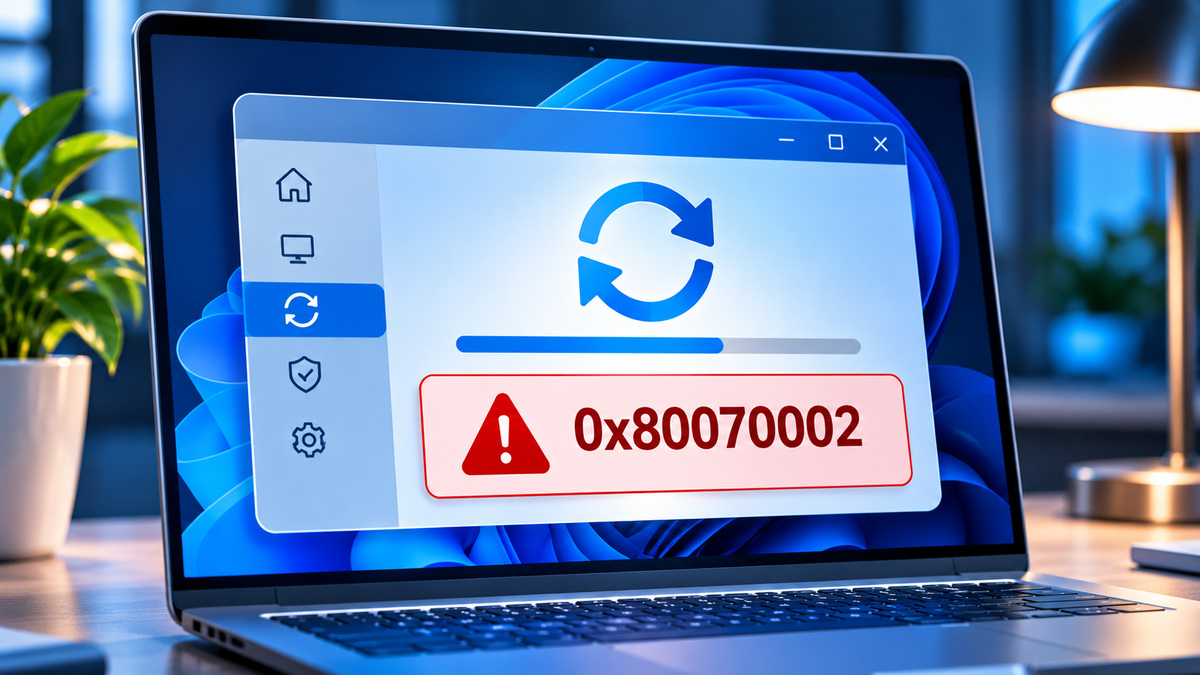
Windows Update error 0x80070002 means an update did not install successfully. It does not identify a single universal cause. A failed download, Windows servicing problem, unavailable file or interrupted update can require different remedies. Start with the built-in tools before attempting advanced cache resets or registry changes.
Microsoft lists 0x80070002 among Windows Update installation errors in its official troubleshooting guidance.
Before changing anything
Restart the PC once, make sure you have a reliable internet connection and enough free storage, and check Settings → Windows Update → Update history. Record the KB number, time and exact error if available. On work-managed PCs, ask IT before changing update services or policies.
Fix 1: Use the Windows Update troubleshooter
- Open Settings.
- Go to System → Troubleshoot → Other troubleshooters.
- Find Windows Update and run the troubleshooter, if offered by your Windows build.
- Apply the recommended actions and retry the update.
Microsoft documents the troubleshooter as an early step in diagnosing update failures. The path or tool availability can vary with Windows version and support changes.
Fix 2: Recheck the specific update
Open Windows Update and select Check for updates. If the failure concerns an optional preview, determine whether you actually need it; routine security updates have higher priority. Do not download similarly numbered KB installers from unofficial sites. If a manual installer is necessary, use Microsoft's official Update Catalog and verify the correct Windows version, architecture and KB.
Fix 3: Repair Windows component files
If Windows Update continues to fail or built-in Windows features are also malfunctioning, open Command Prompt as administrator and run:
DISM.exe /Online /Cleanup-Image /RestoreHealth
sfc /scannow
Run DISM first, allow it to finish, then run SFC. Restart the computer and retry the update. These commands inspect and repair Windows system components; they do not guarantee a solution for every update error. Microsoft documents this sequence in its official DISM/SFC repair article.
Fix 4: Investigate persistent failures
If the same KB repeatedly fails, check the update's support article and current Windows release health notices. Note whether third-party security software, VPNs or device-management policies affect the machine, but do not disable security software casually. If servicing logs show a damaged update cache, follow Microsoft's current documented steps or obtain expert help rather than deleting system folders without knowing the consequences.
How to tell whether the fix worked
Return to Update history and confirm that the specific update installed successfully. Also verify your Windows build by opening Settings → System → About. Do not treat a troubleshooter's success message as proof that the KB installed.
FAQ
Will resetting my PC fix 0x80070002? A reset is a last resort, not a first-line fix. Back up important files and investigate the installation error first.
Can I skip the failing update? That depends on whether it is a security update, quality update or optional preview. Check Microsoft's release guidance.
Should I edit the registry? Not as an initial step. Generic registry fixes often do not address the actual cause and can create additional problems.
Sources
- Troubleshoot problems updating Windows — Microsoft
- Use System File Checker — Microsoft
Related articles

Windows 11 Black Screen After Sign-In: Checks and the October 2026 AVD Fix
A black screen after Windows sign-in has multiple possible causes. Here is how to triage it—and what Microsoft confirmed for AVD with FSLogix.
Windows 11 Apps Won’t Open or Keep Crashing: A Practical Diagnosis Guide
Find out whether a Windows 11 app failure is caused by the app, missing runtimes, corrupted files or a recent change—and try safer fixes first.