VCRUNTIME140_1.dll Missing in Windows: What Causes It and How to Fix It
Learn what VCRUNTIME140_1.dll does, why an app may fail to start, and how to restore the correct Microsoft runtime safely.
On this page
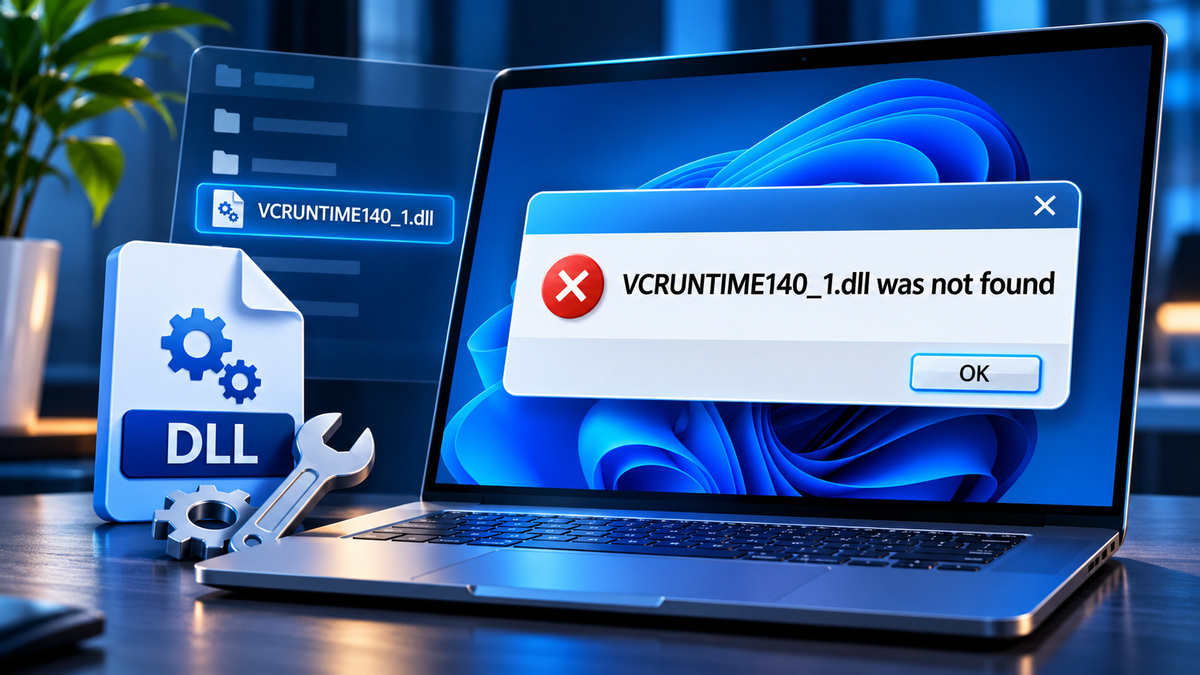
If an application reports that VCRUNTIME140_1.dll is missing, the most likely explanation is that a required Microsoft Visual C++ runtime component is absent, damaged or incompatible with the program. The safest first step is not to download an individual DLL from a file archive. Instead, identify the program's architecture and install or repair the Microsoft Visual C++ Redistributable that the application needs.
What is VCRUNTIME140_1.dll?
VCRUNTIME140_1.dll is associated with Microsoft's Visual C++ runtime, used by applications built with particular versions of Microsoft's C++ toolchain. It helps compiled programs run outside a developer's machine. The exact runtime files an application needs depend on how it was built and packaged; a missing-file dialog is a symptom, not a complete diagnosis.
Microsoft maintains a supported Visual C++ Redistributable download page covering the current v14 runtime for applications built with supported Visual Studio toolsets. The page is preferable to third-party mirrors because the installer and architecture guidance come from the software vendor.
Recognize the error
Common messages include “The code execution cannot proceed because VCRUNTIME140_1.dll was not found” or “VCRUNTIME140_1.dll is missing from your computer.” The error often appears just after launching a desktop application or game. It does not mean the Windows installation itself is necessarily broken.
Fix 1: Install the correct Microsoft runtime
- Close the affected program and save your work.
- Check whether the program is x86 (32-bit), x64 (64-bit) or ARM64. The program's architecture—not just the Windows edition—determines the appropriate runtime.
- Open Microsoft's latest supported Visual C++ Redistributable page.
- Download the official installer matching the application's architecture. A 64-bit Windows computer may also need the x86 package for 32-bit software.
- Run the installer, follow the prompts, restart if requested, and launch the application again.
Do not assume that installing only the x64 package fixes a 32-bit application. Do not substitute a differently named runtime file because its filename looks similar.
Fix 2: Repair an existing Redistributable installation
If the appropriate package is already installed, open Settings → Apps → Installed apps and locate the relevant Microsoft Visual C++ Redistributable entry. Where its installer offers a Repair option, use it and follow any restart instructions. You can also reinstall the current supported package from Microsoft if repair is unavailable or ineffective. A managed work PC may require IT approval.
Fix 3: Repair or reinstall the affected application
Some applications bundle their own runtime components or install prerequisites during setup. Download a fresh installer from the application's publisher, use its repair function if available, and verify that antivirus software has not quarantined legitimate components. If this is a Steam or other game-client title, start with the client's built-in file verification before reinstalling.
What if several programs fail?
When unrelated programs simultaneously show missing-runtime errors, review recent software removals or security-product quarantine history. Install the correct official runtimes, then check for Windows corruption only if broader system symptoms exist. Microsoft's DISM and System File Checker instructions cover Windows component repair, but these tools are not a replacement for an application-specific Visual C++ package.
What not to do
- Do not download an isolated
VCRUNTIME140_1.dllfrom an unknown mirror. - Do not copy random files into
C:\Windows\System32orSysWOW64. - Do not disable antivirus protection merely to make an installer run.
- Do not delete every Visual C++ Redistributable: different applications can depend on different supported and legacy packages.
Frequently asked questions
Is VCRUNTIME140_1.dll malware? The filename is associated with a legitimate Microsoft component, but a file's name alone cannot establish authenticity. Its origin, path, signature and context matter.
Why does the error persist after installation? Check architecture, restart the program, repair the application, and verify that the correct installer finished successfully. A different application dependency may also be missing.
Do I need to replace the DLL manually? Normally, no. Using a trusted installer is safer and keeps related runtime components consistent.
Sources
- Latest Supported Visual C++ Redistributable Downloads — Microsoft
- Use System File Checker — Microsoft
Related articles
MSVCP140.dll Missing or Not Found: Fix the Error Without Risky Downloads
MSVCP140.dll errors usually point to a Visual C++ runtime problem. Use official packages and targeted checks instead of random DLL downloads.
XINPUT1_3.dll Missing? How to Fix the Error in Older PC Games
Older games can need the optional legacy DirectX XInput 1.3 component, even on a Windows PC with a modern DirectX version.